Pet Tracker Usage Guide
This guide provides detailed instructions on how to use the key features of Pet Tracker.
User Account
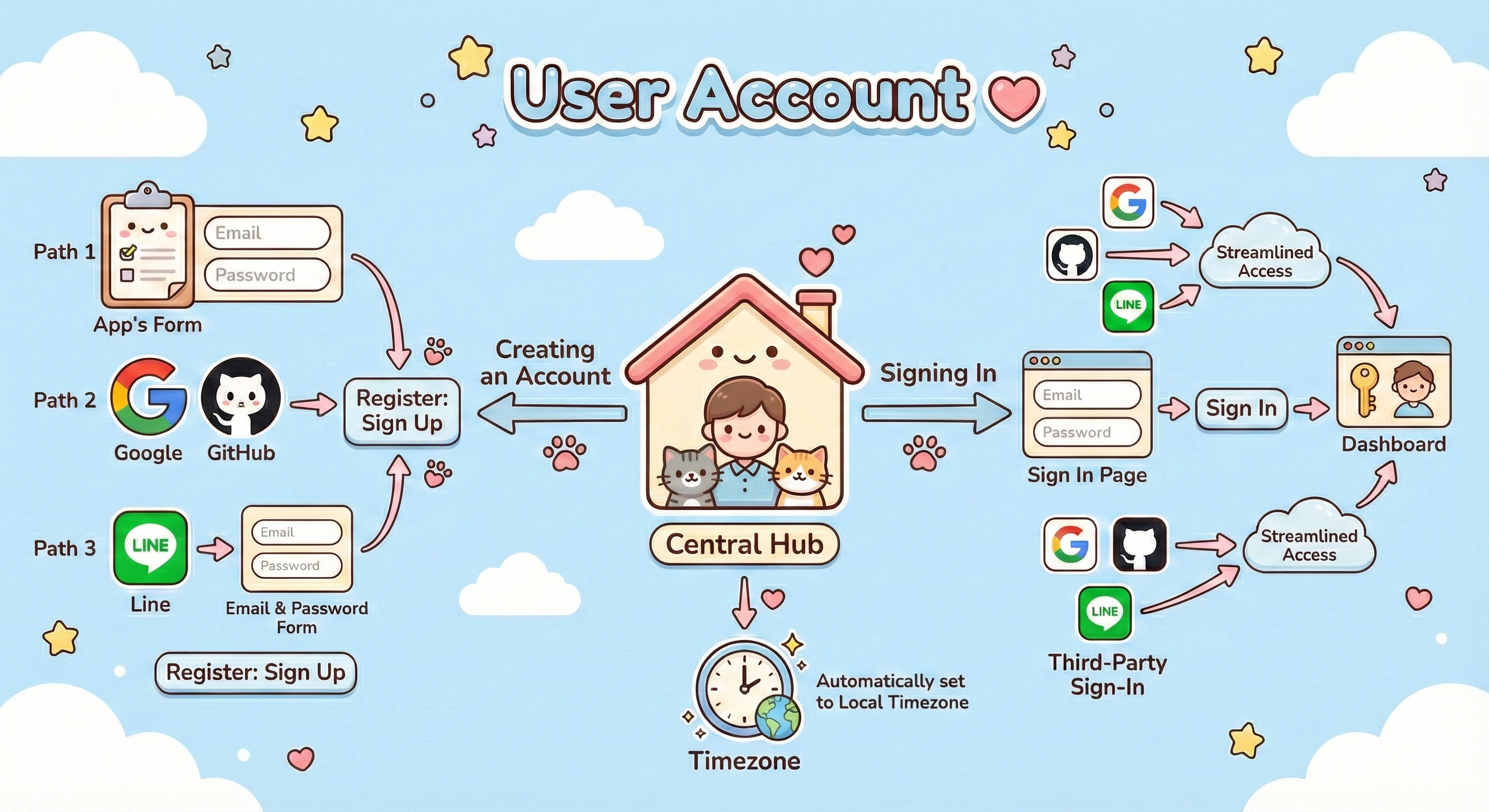
Your user account is the central hub for managing your pets and tracking their dietary.
Creating an Account
- Sign Up: Navigate to the 'Get Started' page.
- There are 4 ways to create account:
Enter Your Details (App's Form): Provide your email address and a secure password.Google/GitHub: Using Google or GitHub to create account.Line: Using Line to create account.Using line to sign up, the page will redirect to the form for filling email and password
- Register: Click the 'Sign Up' button to create your account.
Signing In
- Sign In: Go to the 'Sign In' page.
- Enter Your Credentials: Enter your email and password.
- Access Your Account: Click the 'Sign In' button to access your dashboard.
Third-Party Sign-In
You can also sign in using a third-party provider for a more streamlined experience.
Timezone
App will automatically set your local timezone during your account settings to ensure all tracking data is accurate.
Pet Management
The 'Pets' section allows you to create and manage profiles for each of your pets.
Adding a Pet
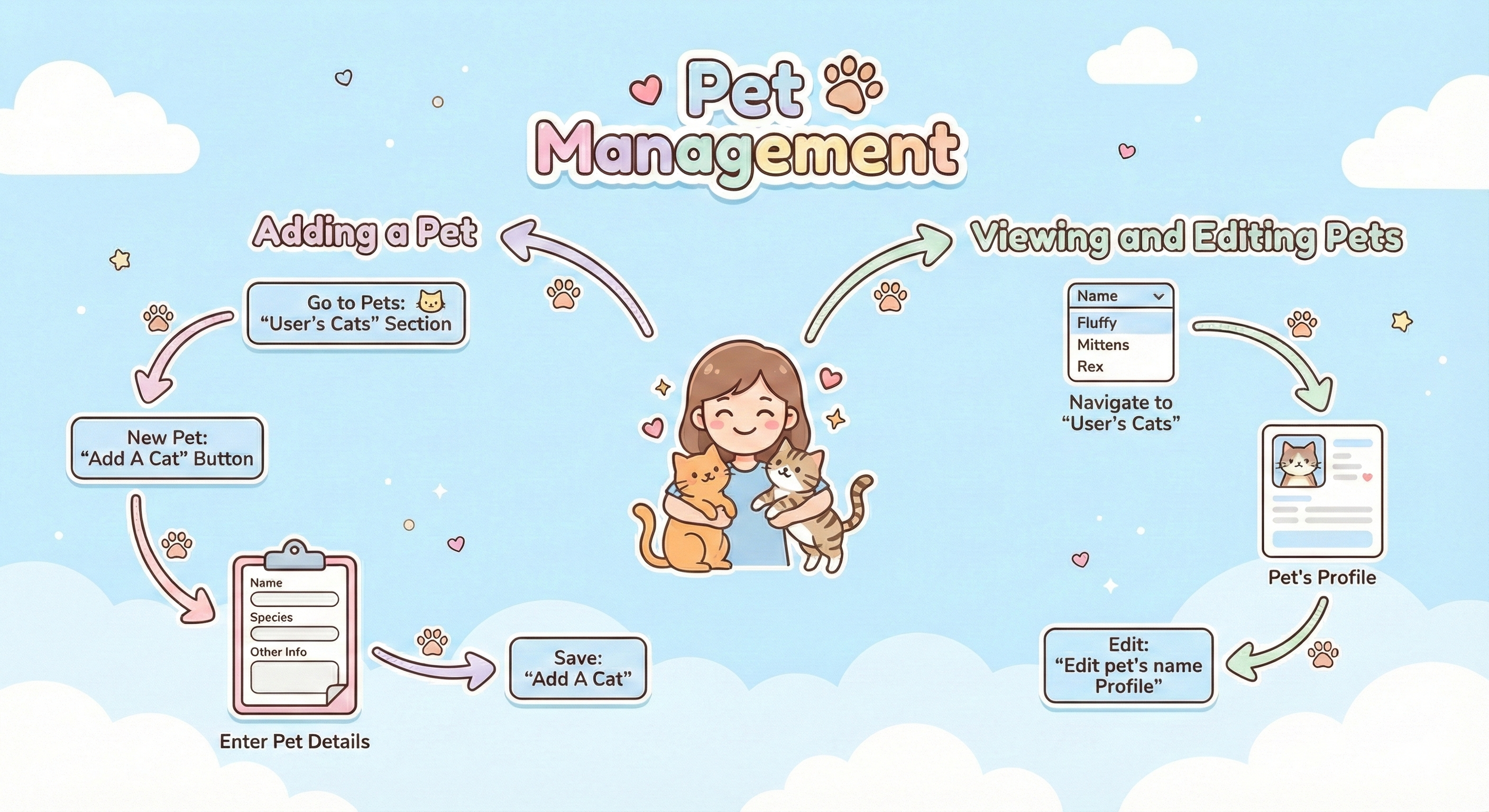
- Go to Pets: Navigate to the 'User's Cats' section from the main menu.
- New Pet: Click the 'Add A Cat' button.
- Enter Pet Details: Fill in your pet's name, species, and other relevant information.
- Save: Click 'Add A Cat' to save the profile.
Viewing and Editing Pets
Navigate to the 'User's Cats' section from the main menu. The dropdown menu will show all the pets' name. Click on a pet's name to see their detailed profile.
- Edit: From the pet's profile page, click 'Edit pet's name Porfile' to update their information.
- Delete: From the pet's profile page, click the delete button and confirm. The pet's records are removed with it.
Dry Food Storage
The 'Dry Food Storage' feature helps you keep track of your pet's dry food inventory.
Adding Dry Food
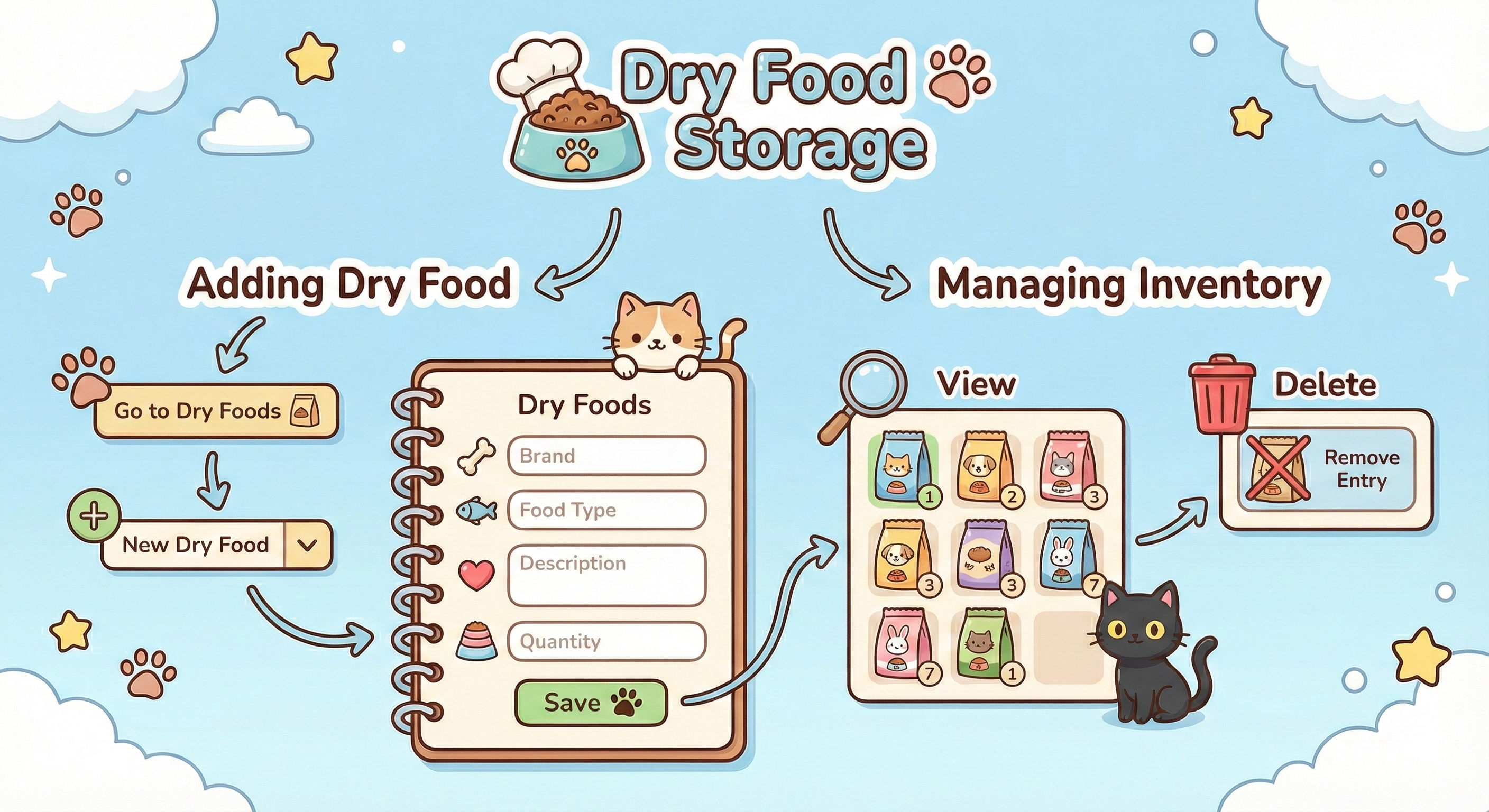
- Go to Dry Foods: Navigate to the 'DryFood Storage' section.
- New Dry Food: Click the 'Add Dry Food' in the dropdown menu.
- Enter Food Details: Provide the brand, food type, description/brand, and quantity of the dry food.
- Save: Click 'Add Dry Food' to add it to your inventory.
Managing Inventory
- View: See a list of all your dry foods and their current quantities.
- Delete: Remove a dry food entry from your inventory.
- Restock: When you open a new bag, click 'Restock' and enter its amount. The food left starts again from the new bag.
- Run-out date: Each kibble tracker draws the bag down, so the app shows how much is left and predicts when it will run out.
Trackers
Trackers are used to log your pet's daily doetary, such as feeding times, amount, and health observations.
Creating a Tracker
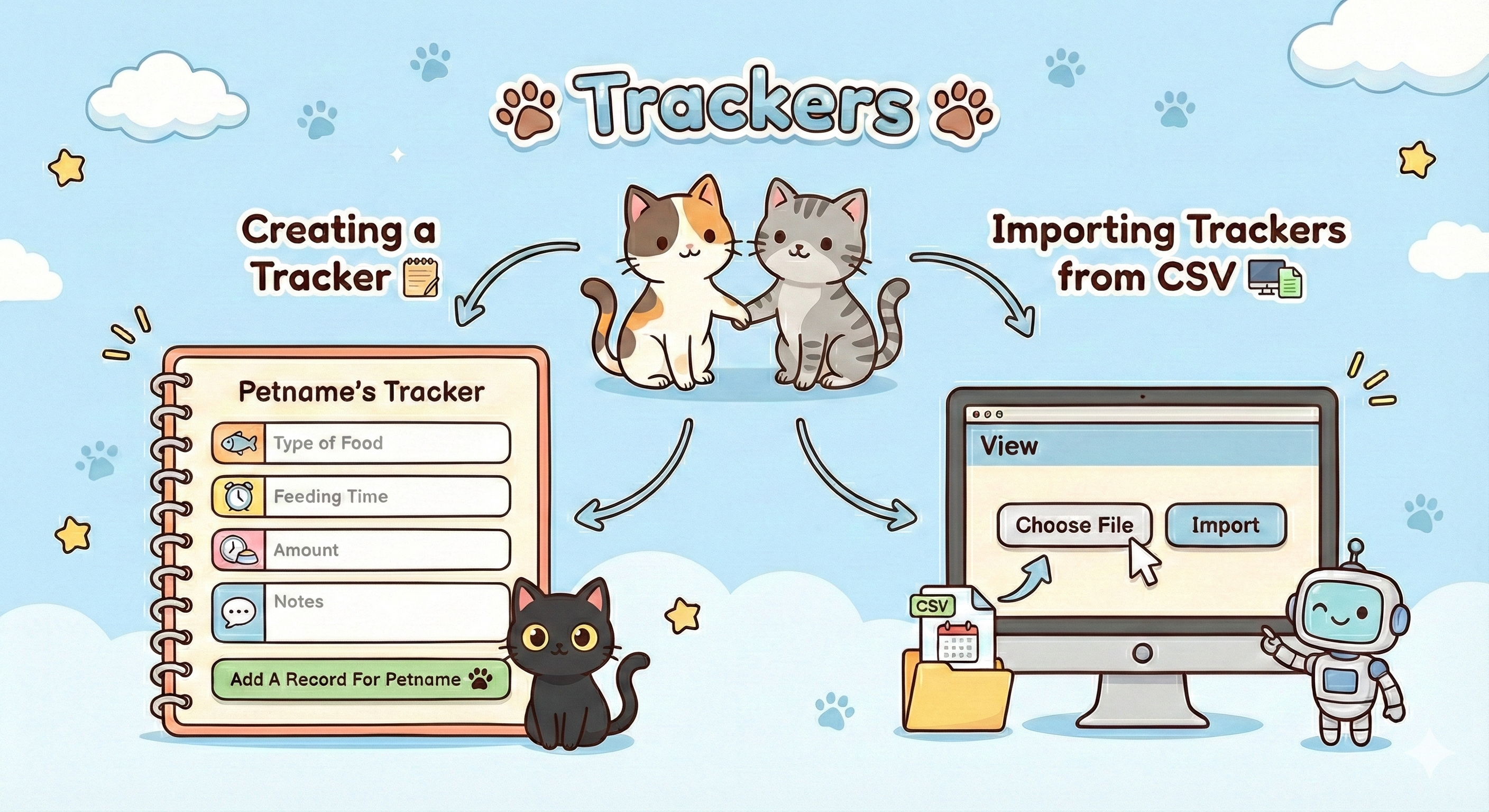
- Go to Trackers: Navigate to the 'Trackers' section.
- New Tracker: In petname's tracker page, click on 'New Tracker For Petname' button
- Select Pet: Choose the 'Petname's Tracker' in the dropdown menu.
- Enter Details: Fill in the dietary details, such as the type of food, feeding time, and any notes.
- Save: Click 'Add A Record For petname' to log the dietary information you want to create for.
Importing Trackers from CSV
For bulk data entry, you can import trackers from a CSV file.
- Go to Trackers: Navigate to the 'Trackers' section.
- Import CSV: Click the 'Choose File' button.
- Choose File: Select the CSV file you want to import.
- Upload: Click 'Import' to upload and process the file.
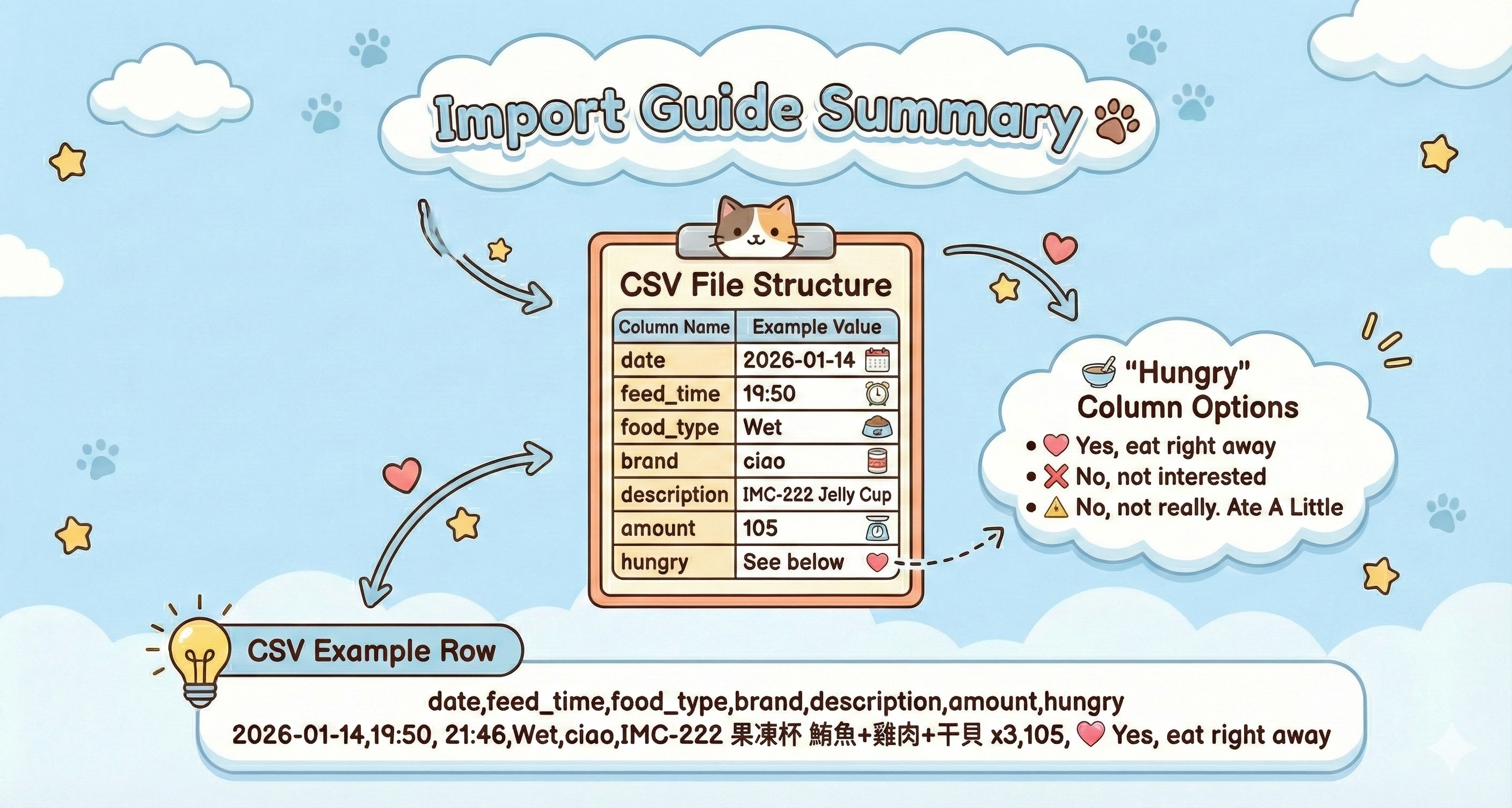
📋 Import Guide Summary
To successfully import your cat's diet records, please ensure your CSV file includes the following columns and follows these value conventions:
The file must be semicolon-separated (;), in the same format as the CSV you download from the Trackers page, so the easiest start is to export first and edit that file. Every row is checked before anything is saved: dates must be valid and not before your pet's birthday, and amounts and weight must be numbers. If any row has a problem, nothing is imported and you'll see which rows to fix.
| Column Name | Description | Example Value |
|---|---|---|
| date | The date of feeding | 2026-01-14 |
| feed_time | The time food was served | 19:50 |
| food_type | Type of food (Wet/Dry) | Wet |
| brand | Brand name | ciao |
| description | Product name or flavor | IMC-222 Jelly Cup |
| amount | Total amount served (g) | 105 |
| hungry | Cat's appetite status | See below |
🥣 'Hungry' Column Options
Please use one of these exact phrases (including the symbols) for the hungry column:
- 💖 Yes, eat right away
- ❌ No, not interested
- 🔺 No, not really. Ate A Little
💡 CSV Example Row
You can use this format for your file to import:
| date | feed_time | food_type | brand | description | amount | hungry |
|---|---|---|---|---|---|---|
| 2026-01-14 | 19:50, 21:46, | Wet | ciao | IMC-222 果凍杯 鮪魚+雞肉+干貝 x3 | 105 | 💖 Yes, eat right away |
| date | 2026-01-14 |
|---|---|
| feed_time | 19:50, 21:46, |
| food_type | Wet |
| brand | ciao |
| description | IMC-222 果凍杯 鮪魚+雞肉+干貝 x3 |
| amount | 105 |
| hungry | 💖 Yes, eat right away |
Favorite Food and Charts
Your trackers turn into a ranking of the foods your pet loves most and charts of what it eats and weighs.
Favorite Food
- Open the list: In the menu, open 'Trackers' → 'Petname's Favorite List'.
- Read the score: Each meal gets a favorite score from how hungry your pet was, how much it loved the food, how much it left and how often it came back to eat. Each food shows its five best days.
- Filter by food type if you only want to see, for example, kibble.
- See prices: Use the 'Kibble prices' link at the top to see where your pet's favorite kibbles are cheapest.
Charts
- The trackers page charts dry and wet food eaten each day, and weight, for the date range you choose.
- Weights from trackers and from ⚖️ Weight on the Today page are shown together.
- Write hotel, boarding or 旅館 in a tracker's note and those meals are charted separately, so a boarding stay doesn't blur the trend at home.
- Download the chart as an image, or share it.
Households: Caregivers and Viewers
Your cats, food bags, litter boxes and water spots form your household. You're its owner and manage everything; family and pet sitters can help. Open it from the menu (🏠 My household) or your account page.
Who can do what
- Caregivers (family, a pet sitter) record feeding, litter, water and medicine, and can read your trackers and charts. They need an account.
- Viewers (say, Grandma) see today's status, the timeline and the charts, read-only. They use a personal link and don't need an account.
Inviting a Caregiver
- Enter their email under 'Invite a caregiver' and send the invitation.
- They open the link in the email, create an account (or sign in with Google or LINE using the same email) and join. The link works once, for 7 days, and only for that email.
- They land on the Today page, with buttons for your cats.
Viewer Links
- Create a link under 'Viewer links', with a name (e.g. Grandma) and, if you like, an expiry.
- Copy it and send it by LINE or email. Each viewer gets their own link.
- Turn it off at any time; it stops working at once.
Litter Boxes and Water Spots
- Add, rename, choose bowl or fountain, move up or down, and remove each litter box and water spot.
- Each one has a line per job for reminders: Off, every few hours or days, or at set times. Save with the spot's 'Save' button.
Members, Leaving and Handing Over
- Remove a caregiver or viewer from the household page; they can also 'Leave' from their account page.
- Hand the household over to a member: once they accept, they become the owner and you stay on as a caregiver.
- Someone who only helps can still add their own cat from their account page ('Add my own cat'), which creates their own household.
The Today Page
Today shows each household you're in: a row per litter box and water spot, a card per cat, and a timeline of the last 24 hours. Everyone's changes appear without reloading.
Recording Care
- One tap records what you did, now: 🍽 Fed, ⚖️ Weight (enter the kg), 💊 Meds, 🚽 Scooped / ♻️ Full change / 🧽 Box cleaned, 💧 Refilled / 🧽 Cleaned / 🔄 Filter changed.
- A notice appears with Undo (10 seconds), '5 · 10 · 15 min ago' to change the time, and 'Add details'.
- 'Record it again?' appears if the same care was just recorded by anyone in the last 30 minutes.
- Feeding details suggest your household's food bags and your cat's favorites. The owner can turn a feeding into a full tracker with 'Add to trackers'.
Fixing a Record
- Undo right after a tap (10 seconds).
- Change a record on the timeline: the time (up to 7 days back), the jobs, the details or a note.
- Delete a mistaken record after you confirm; it is removed from Today, the charts, the CSV and reminders.
- The owner can change and delete any record; a caregiver their own records, for 24 hours.
Litter Observations
- In a litter record's 'Add details': which cat (if you know), pee clumps, the number of poops, the stool, and anything unusual (blood, very large clumps, other).
- Diarrhea and anything unusual show in red. With a cat chosen, they also appear on that cat's trackers page for 30 days.
Medications
Keep track of every dose, whoever gives it.
Giving Medicine
- Add medications: The owner adds them per cat (cat profile → Medications): name, dose, up to 4 times a day (or none for 'as needed'), and dates.
- Record a dose: 💊 Meds on Today offers today's doses not yet recorded: 'Given', or 'Couldn't give' with a reason.
- Check the status: Each dose shows due, given (green), couldn't give (amber) or overdue (red, an hour after its time). Recording a dose already given asks first.
Reminders
Be told when the litter box, water fountain or a dose is due.
Setting Up Reminders
- Choose how often (owner): On the household page, for each litter box and water spot job, choose 3 times a day, twice a day, daily, twice a week, weekly, every 2 weeks, twice a month, monthly or custom (hours or days), counted from the last time it was done; or at set times (up to 6, e.g. 08:00 and 20:00).
- Turn them on: Under your household's name on Today, tap 'Turn on' next to 🔔 Reminders. Each owner and caregiver chooses for themselves; viewers don't get reminders.
- See them on Today: e.g. '🧽 Fountain cleaned due in 4 days' or '🚽 Scooped due at 20:00'.
When and How They Arrive
- A job due on a day is sent at 9am in your time zone; a shorter interval when it's due, between 9am and 9pm; a set time at that time. If it's still not done, there's one follow-up. Overdue doses are reminded once.
- Reminders arrive in the Android app if you use it, else on LINE if you signed in with LINE, else by email.
- Weight reminders are sent by LINE or email.
Kibble Prices
Pet Tracker checks what your pet's favorite kibbles cost in Taiwan's online shops, so you can buy the one your pet loves at the best price.
Which Kibbles Are Checked
- Kibbles on the Favorite Food list with a favorite score of 30 or more, fed in the last 4 months (up to 5).
- Prices come from BigGo, a price-comparison site covering shops such as Shopee, momo, Yahoo, Coupang and Rakuten, and from PChome 24h.
- Name the food the way it's sold: brand plus product name, including the flavor (鴨肉, 雞肉…) and any product code (IN27…). The app uses these to tell the right product from similar ones.
Reading the Prices Page
- Open it: Go to your pet's profile and click 'Kibble Prices', or use the link on the Favorite List.
- Compare: One card per kibble, in favorite order. Prices are ranked by price per kg, cheapest first, so bags of different sizes compare fairly.
- Buy: Click a product to open the shop's page. Each price shows where it was found and when.
- 'Can't find this kibble in shops right now.' means neither BigGo nor PChome lists it at the moment. Check the brand and description spelling in your trackers.
Refreshing and the Monthly Email
- Prices are checked on the 1st of every month and emailed to you, in 繁體中文, 日本語 or English depending on your time zone.
- Click 'Refresh now' to check today, once a day per pet. Results appear after a minute or so; reload the page.
- Prices are approximate and shops change them often, so check the shop before buying.
Health Checks
Keep your pet's checkups and blood test results in one place and see how they change over time.
Adding a Health Check
- Open it: From your pet's profile, go to 'Health Checks' and add a new one.
- Enter the results: The exam date and the values from the report: blood count, kidney, liver, pancreas, heart and other results such as FIV and FeLV.
- Save: The results are listed by date, and you can delete several at once.
Reading Reports with AI
- Add your Gemini API key: In your account settings, paste your own Google Gemini API key (the page explains how to get one).
- Upload photos: On the health check form, upload photos of the report (up to 5 images, 10 MB each).
- Check the results: Gemini fills in the values it finds. Check them against the report before saving.
Vet Visits
Prepare questions before a vet visit and record the vet's answers afterwards.
Before and After the Visit
- Write questions: From your pet's profile, go to 'Vet Visits' and add your questions with the visit date.
- Invite helpers: Add other members by email so they can see the questions and help answer them.
- Record the answers: After the visit, write the vet's answers, several at once if you like.
- Add the details: The vet's name, the purpose (vaccination, checkup, dental cleaning, surgery, grooming, emergency, follow-up or other), and how long you waited versus how long you spent with the vet.
Sharing, Export and Backups
Your records are yours: share them, download them, or bring them in from elsewhere.
Sharing a Pet's Records
- On the trackers page, the owner can create a read-only link to the pet's feeding records and charts, for a vet or a sitter.
- Choose how long it works: 1 day, 7 days, 30 days or no expiry. Stop sharing at any time; the link stops working at once.
Download and Backups
- Export trackers as CSV from the trackers page, and select several records to delete at once.
- The owner can download every care record (feeding taps, weight, litter, water, medicine) from the household page, in the household's time zone.
- A CSV backup of your trackers is emailed to you every day you've changed them.
Your Account
- Sign out of your other devices from your account page if you've lost a phone or used a shared computer.
Android App and PWA
Use Pet Tracker on your phone, as an Android app or installed from the browser.
Android App
- Sign in with email, or with Google, LINE or GitHub: a Chrome tab opens over the app and brings you back signed in.
- Turning on 🔔 Reminders on Today asks to allow notifications. Reminders then arrive as notifications; tapping one opens Today.
- Signing out of the app stops notifications on that phone.
Progressive Web App (PWA)
- Open the app in a supported browser on your phone.
- Choose 'Add to Home Screen' or 'Install' in the browser's menu.
- Launch it from your home screen like a native app.